Author: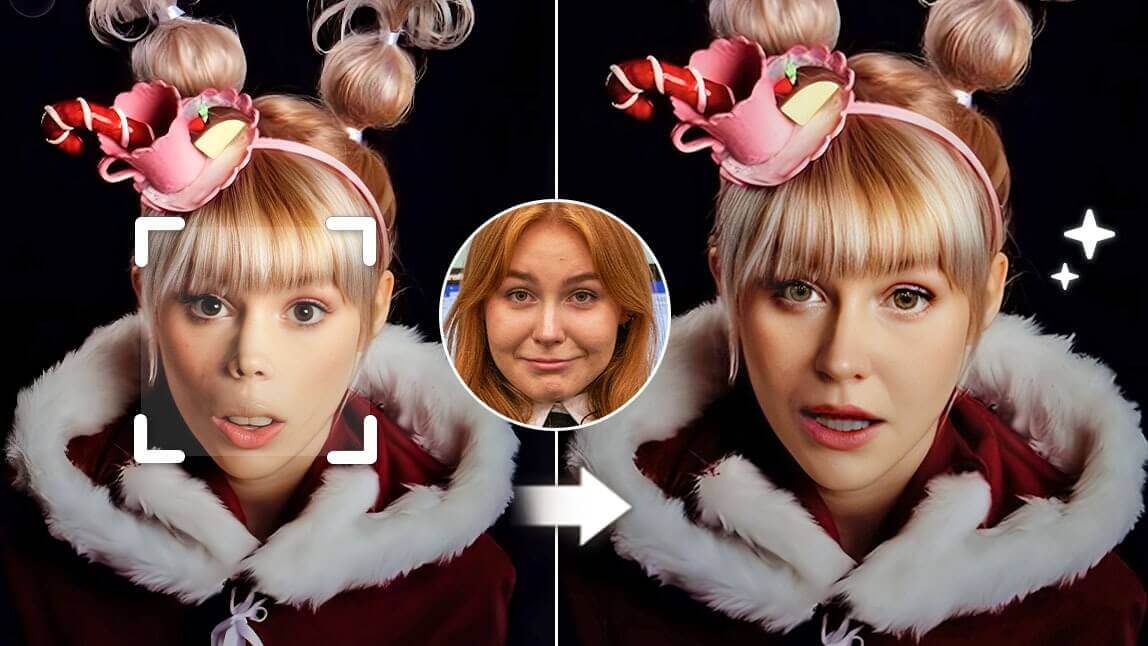
Whoville, a fictional town in the series ‘How the Grinch Stole Christmas’ has been widely recognized since the 1950s.
If you’d want to see how you would look as a ‘Who people’, read the article to try the Whoville filter with YouCam Perfect and review this cute but inspiring story with your loved ones!

What Are Whoville People?
Whoville people—often simply called the Whos—are the cheerful, whimsical residents of the fictional town Whoville from Dr. Seuss’ How the Grinch Stole Christmas. They are known for their:
- Unique facial features, including petite upturned noses
- Bright, expressive eyes and long, curly eyelashes
- Fun, festive hairstyles (Cindy Lou Who’s iconic hairstyle is the most famous)\
- Joyful personalities and love for Christmas, music, and community
Although they vary widely in height and shape—from tiny Whos to tall Whos—their signature look is playful, colorful, and unmistakably storybook-style. This distinct appearance is why the Whoville filter is so popular: it captures these exaggerated features and transforms your selfie into a charming, festive “Who” character.
How To Use Whoville Filter?
With the Christmas Filter app YouCam Perfect, you can see yourself turn into the Whos from Whoville with the iconic Whoville nose within clicks!
Step1. Download YouCam Perfect App
Get the Whoville filter app: YouCam Perfect on Google Play or App Store.
Step2. Upload Your Photo
Locate Photo Edit and select one of your selfies.
Step3. Face Swap with Whoville Characters
With the Face Swap feature in YouCam Perfect, you can also change your face with any Whoville character you like! Simply upload your photo and click Face Swap in the tool bar.
Then, choose one image of a Whoville character, and tap Continue.
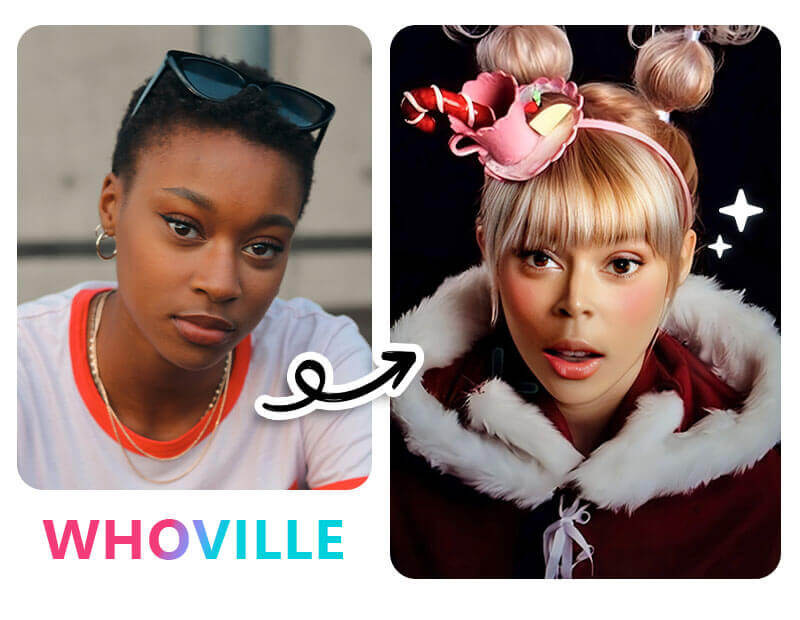
Step4. Get Whoville Nose and Whoville Face
Go to Beautify and find Reshape to adjust the size of your nose. Then, find Blush and apply pink blush to your cheeks.
Next, click Eyelashes to get yourself long, curly eyelashes just like Cindy Lou Who!

Bonus: Whoville Filter on TikTok
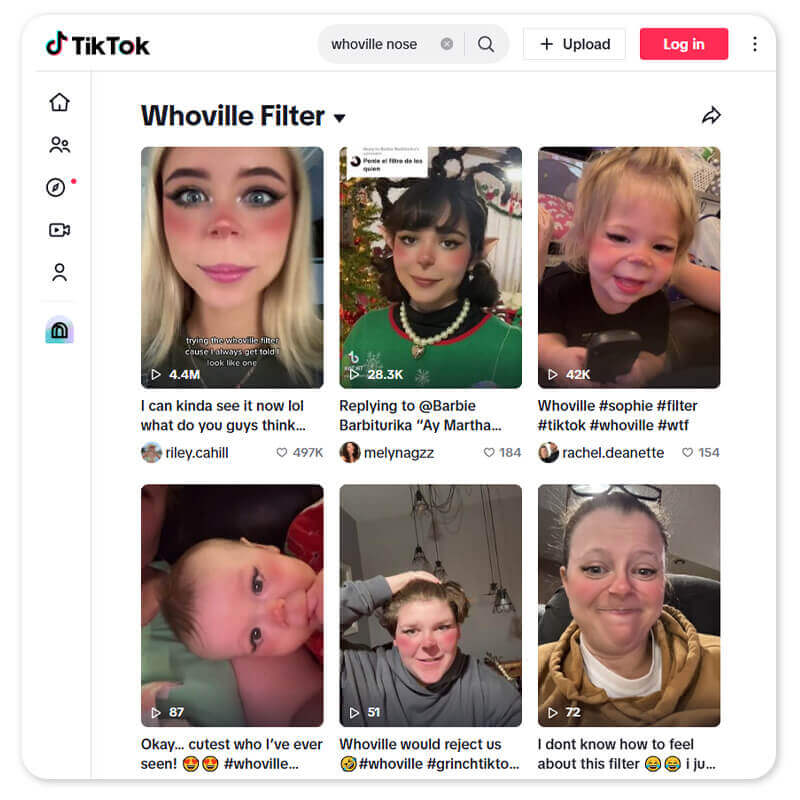
You can also try the Whoville face filter on TikTok. It turns your nose into a small canine snout, adds blush onto your cheek, and applies thick eyelashes to your eyes.
Find the Whoville Face Filter on TikTok and turn yourself into Cindy Lou Who in seconds!
Grinch Filter: More Christmas Filters Other Than Whoville Filter
As we mentioned the Whos, you might also be reminded of the green, furry Grinch. With YouCam Perfect, you can also ‘Grinch Yourself’ in photos!
The Artistic Avatar feature generates a Grinch avatar of you. Simply upload your photo, tap Artistic Avatar on the homepage, and select the Grinch style in the Holiday category.
The AI tool would turn you into a Grinch within clicks!

Final Thoughts about Whoville Filter
YouCam Perfect is your go-to companion for Christmas filters this holiday season. Try the Whoville filter, the Cindy Lou Who filter, or the Grinch filter, and let your inner child have some festive fun!
Related Posts:
- Grinch Filter: Turn Yourself into a Grinch
- How to Create Elf Yourself Christmas Cards with Your Selfie
- Make Me Santa App: How to Do Face-in-Hole Santa for Xmas
Whoville Filter FAQs
Where can I get the Whoville Filter?

You can get the Whoville filter in the Christmas app YouCam Perfect. Follow the steps below to turn yourself into a Whoville character:
- Get the Whoville filter app YouCam Perfect for free.
- Locate Photo Edit and select one of your photos.
- Go to Beautify and find Reshape to get a Whoville nose.
- Tap Makeup to add blush to your cheeks and add long eyelashes just like Cindy Lou Who.
- Save and share your Whoville photo with your friends!
Is there a place that looks like Whoville?
Yes! While Whoville itself is fictional, a few real-world spots give off serious Whoville vibes. Places like Leavenworth in Washington, Dr. Seuss–themed areas at Universal Studios, and certain Christmas markets in Europe capture the colorful, whimsical, festive look many people associate with Whoville.
Is Whoville on a speck of dust?
One version is. In Horton Hears a Who!, Whoville exists on a tiny speck of dust protected by Horton the elephant. However, in How the Grinch Stole Christmas, Whoville is located on a snowflake. Both settings are canon but belong to different Dr. Seuss stories.
How to turn a photo into a Whoville character?
You can turn a photo into a Whoville character using the YouCam Perfect app. Upload your selfie, then use Face Swap to swap your face with any Whoville character, or manually edit with Reshape, Blush, and Eyelashes to recreate the signature Whoville look—small rounded nose, rosy cheeks, and long curled lashes.
What does a Who from Whoville look like?
Whos typically have small, upturned noses, bright wide eyes, long curled eyelashes, and rosy cheeks. Many versions—especially in film adaptations—also show Whos with whimsical hairstyles and a cheerful, expressive appearance. Their overall look is cute, festive, and slightly exaggerated, giving them a signature storybook style.